





Back to homepage
  • For MSPs
  • AI-Native
Search in acronis websites
Login for
  • Service ProvidersAcronis Cyber Protect Cloud
  • Business CustomersAccess business security, backup, and deployment products
  • Home UsersAcronis True Image
  • Acronis Partner PortalPartner resources, training, certifications, and business tools.
  • ConnectAcronis Cyber Protect Connect
  • For MSPs
  • AI-Native

Contact us

  • Contact Sales
  • Contact Support
  • Contact Renewals
  • All Contacts
Search
Try Now
Choose region and language
Americas
  • BrasilPortuguês
  • CanadaEnglish
  • CanadaFrançais
  • LATAMEspañol
  • United StatesEnglish
Asia-Pacific
  • AustraliaEnglish
  • Chinese Simplified简体中文
  • Chinese Traditional繁體中文
  • IndiaEnglish
  • Japan日本語
  • Korea한국어
  • SingaporeEnglish
Europe, Middle East and Africa
  • BulgariaБългарски
  • CzechČeština
  • EuropeEnglish
  • FranceFrançais
  • GermanyDeutsch
  • HungaryMagyar
  • Israelעברית
  • ItalyItaliano
  • NetherlandsDutch
  • PolandPolski
  • RomaniaRomână
  • SpainEspañol
  • SwedenSvenska
  • SwitzerlandDeutsch
  • TürkiyeTürkçe
  • United KingdomEnglish
Worldwide
  • GlobalEnglish
  • Americas
    • BrasilPortuguês
    • CanadaEnglish
    • CanadaFrançais
    • LATAMEspañol
    • United StatesEnglish
  • Asia-Pacific
    • AustraliaEnglish
    • Chinese Simplified简体中文
    • Chinese Traditional繁體中文
    • IndiaEnglish
    • Japan日本語
    • Korea한국어
    • SingaporeEnglish
  • Europe, Middle East and Africa
    • BulgariaБългарски
    • CzechČeština
    • EuropeEnglish
    • FranceFrançais
    • GermanyDeutsch
    • HungaryMagyar
    • Israelעברית
    • ItalyItaliano
    • NetherlandsDutch
    • PolandPolski
    • RomaniaRomână
    • SpainEspañol
    • SwedenSvenska
    • SwitzerlandDeutsch
    • TürkiyeTürkçe
    • United KingdomEnglish
  • Worldwide
    • GlobalEnglish
Acronis True Image
FOR HOME
MenuMenu
Acronis True Image
Overview
Backup
Cloning
Security
  • Backup features
    Easy BackupEmail BackupAutomatic BackupCloud BackupMobile BackupBackup ReplicationImaging SoftwareData MigrationData RecoverySurvival Kit
  • Security features
    Anti-Malware SoftwareIdentity ProtectionAntivirus SoftwareActive ProtectionReliable CybersecurityCryptojacking BlockerSecurity for MacData Protection
  • Solutions
    Gaming SecurityCloud Photo StorageElectronic SignatureMobile App
All features
Compare
Backup
Cloning
Security
Product features
Backup features
Easy Backup
Email Backup
Automatic Backup
Cloud Backup
Mobile Backup
Backup Replication
Imaging Software
Data Migration
Data Recovery
Survival Kit
Security features
Anti-Malware Software
Identity Protection
Antivirus Software
Active Protection
Reliable Cybersecurity
Cryptojacking Blocker
Security for Mac
Data Protection
Solutions
Gaming Security
Cloud Photo Storage
Electronic Signature
Mobile App
All features
Compare
Buy now
Try now
Secure automatic backup software for your home and office

Secure automatic backup software for your home and office

Buy nowTry now

Keep your data up to date with a reliable automatic backup solution

Some people focus on time, others on actions. When it comes to protecting your personal data, Acronis True Image lets you choose the reason for backing up. Instead of scheduling a backup based on time or day, our event-based option lets you start backups automatically based on what you’re doing.

Making use of automatic backups by setting them daily, weekly or for a specific event (such as launching the system or connecting an external drive) helps you by freeing up your time, and it will make sure that you always have a secure copy of your data, meaning you will not lose your personal data.
Acronis
1:52

Key features and benefits of our automatic backup software

  • Continuous and automatic backup of files and data
    Continuous and automatic backup of files and data
    Automated backups enables reliable data and file backup that will protect you from data loss, so you won’t lose any of those precious memories.
  • Real-time protection against data loss
    Real-time protection against data loss
    Once you have set up automated backups, this will make sure you’re protected against data loss as you make full or incremental backups — ensuring all your files and photos are safely stored.
  • User-friendly interface for seamless setup and management
    User-friendly interface for seamless setup and management
    It’s easy to use, and only requires a few clicks to set up your automatic backup solution. You can easily schedule your backups and decide which source you want to back up to.
  • Customizable backup schedules to fit individual requirements
    Customizable backup schedules to fit individual requirements
    Create a schedule to suit your own needs. You can create daily, weekly and monthly backup schedules to make sure you always have a secure backup in place.
  • Multidevice compatibility for comprehensive data protection
    Multidevice compatibility for comprehensive data protection
    Works on Windows, macOS, Android and iOS to make sure you have protection in place to keep all your files, photos and systems protected.

Easy data protection

Event-triggered backups are the simplest way to schedule your data protection. What’s easier than plugging in an external hard drive to start backing up your system?
Easy data protection

The brilliance of automatic backups

Save time, improve your security and keep your personal files, photos, applications and system safe. Keep peace of mind by setting up a reliable automatic backup service that is triggered when:

  • Launching the system

    Launching the system

    Regularly capture copies of clean data immediately after startup, before anything happens — like an accidental deletion, hardware failure or malware attack.
  • Attaching a USB drive

    Attaching a USB drive

    Anyone who prefers a USB external hard drive as their backup destination will love how easy backups become. Simply connect the drive and the backup begins.
  • Entering Power Nap

    Entering Power Nap

    Mac users have the ability to back up their machine’s data when it enters Power Nap mode — allowing them to save both battery power and their data.
  • Shutting down

    Shutting down

    Most system failures occur when shutting down, but automatically triggering a backup when you shutdown ensures you capture all of your most current changes.
  • Easy to set up

    Easy to set up

    Scheduling and setting up automatic backups to protect your personal files, photos and memories is easy. With only a few clicks, you can create your schedule to make sure you have safe copy of your precious data.

Choose the Acronis True Image plan that meets your needs

Please wait, this may take

a few seconds...

100% Detection Rate and 0 False Alarms in independent tests
Best Windows backup software, PCWorld
Cybersecurity Excellence Awards Winner
Editors' Choice, PCWorld
OPSWAT Anti-malware Platinum certification
TIME's Best Cloud Backup Services

Works On Multiple Platforms

Microsoft Windows

  • Windows 11 (64-bit)
  • Windows 10 (64-bit)

Mobile operating systems

  • iOS 15 or later
  • Android 10 or later

File systems on Windows

  • NTFS
  • Ext2/Ext3/Ext4
  • ReiserFS(3)
  • Linux SWAP
  • HFS+/HFSX
  • FAT16/32/exFAT

Apple macOS

  • macOS Tahoe 26
  • macOS Sequoia 15
  • macOS Sonoma 14
  • macOS Ventura 13
  • macOS Monterey 12

File systems on macOS

  • APFS
  • HFS+
  • FAT32
  • NTFS (including Boot Camp)

Acronis Mobile: Easy, secure and portable

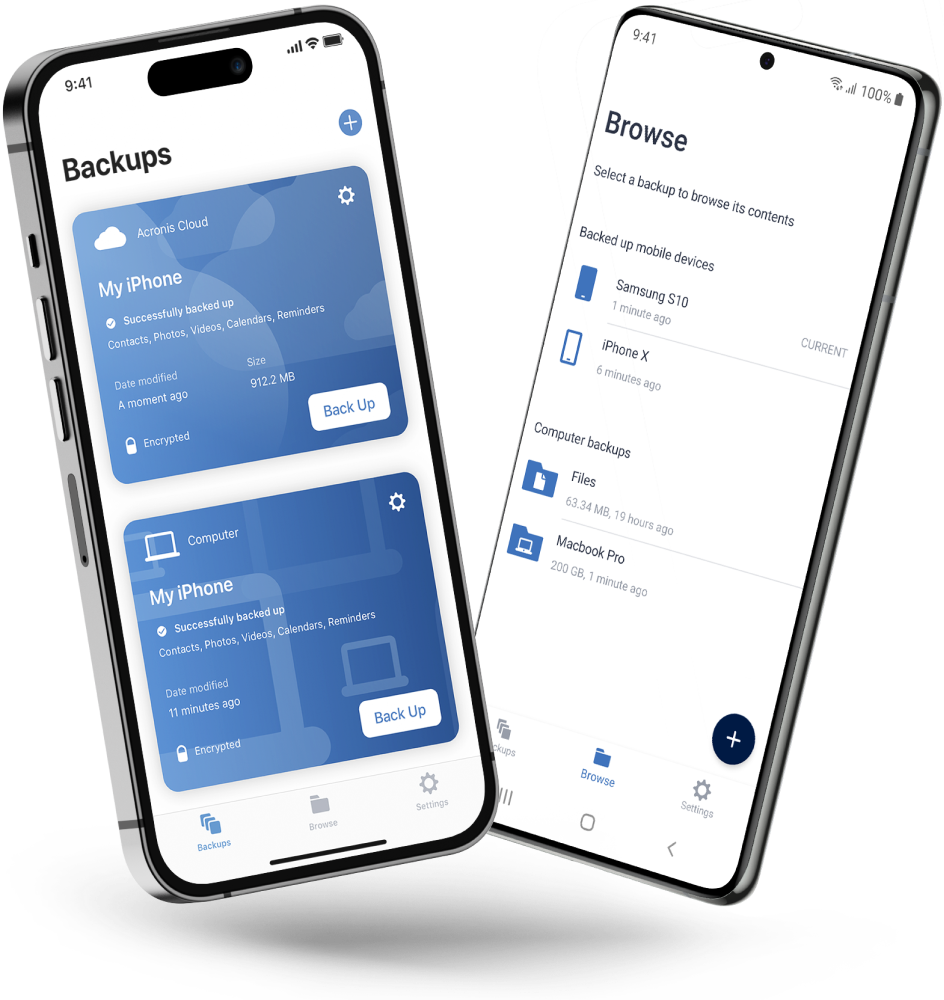
Never worry about losing your photos, videos, contacts or important files again. With the Acronis Mobile app, you can easily back up everything that matters on your phone and keep it safe in the cloud. Access your files anytime, anywhere from the Acronis Cloud, whether you're switching devices or just want peace of mind. It’s fast and always ready to protect your digital life.

  • How to back up your mobile device via Wi-Fi to a PC or Mac
Acronis Mobile: Easy, secure and portable

Looking for help?

Frequently Asked Questions

  • Automatic backup is the process of backing up your personal files, photos, videos, applications, settings and other data based on a specific event or at a set time — such as daily, weekly or monthly.

  • Acronis automatic backup differs from other manual backups as those are triggered by manual interventions, so they do not require you to remember to back up your personal data every time. You can just set up a schedule and the system will take care of rest. This can also be helpful when you are not as tech savvy.

  • Yes you can decide on and customize the backup settings to fit your needs.

  • You can decide to perform automatic backups daily, weekly or monthly.

  • Yes, the data is encrypted, and you can protect your backup with a password for additional security.

  • There are no limitations on the amount of data for Acronis True Image. What only need to be kept in mind is the possible limitation of the source, such as your external drive or the Acronis cloud.

  • An automatic backup gives you peace of mind as the backups are done regularly and are automated. You can decide to set them daily, weekly or monthly backups, which means you can focus on other important things. It will also help to save time, enhance reliability, improve your security, and is really easy to set up.

Product help
If you need product assistance, you can find helpful materials in the Knowledge Base. Or, post questions on our discussion boards.
Technical support
For subscription owners, there is free, 24-hour technical support. Refer to the Technical Support Site to find the appropriate support contact.
  • Company
    Press Releases
    Careers
    Contacts
    Cloud Data Centers
    Forum
  • Service Providers
    Resellers
    Developers and ISVs
    Affiliates
    OEMs
  • Active Protection
    AnyData Engine
    Universal Restore
    Anti-malware
    View all
  • Management
    Automation
    Security
    Data Protection
    View all
  • Acronis #CyberFit Sports
    Acronis Cyber Foundation
    TRU security
    Professional Services
  • ConnectWise
    Microsoft CSPs
  • Veeam
    Sophos
    Trend Micro
    ESET
    SentinelOne
    View all
  • Physical
    Virtual
    Cloud
    Endpoints
    Applications
    Mobile
  • About Acronis
  • Company
  • Press Releases
  • Careers
  • Contacts
  • Cloud Data Centers
  • Forum
  • For partners
  • Service Providers
  • Resellers
  • Developers and ISVs
  • Affiliates
  • OEMs
  • Technologies
  • Active Protection
  • AnyData Engine
  • Universal Restore
  • Anti-malware
  • View all
  • Integrations
  • Management
  • Automation
  • Security
  • Data Protection
  • View all
  • Programs & Services
  • Acronis #CyberFit Sports
  • Acronis Cyber Foundation
  • TRU security
  • Professional Services
  • Vendor Alliance
  • ConnectWise
  • Microsoft CSPs
  • Compare to
  • Veeam
  • Sophos
  • Trend Micro
  • ESET
  • SentinelOne
  • View all
  • Environments
  • Physical
  • Virtual
  • Cloud
  • Endpoints
  • Applications
  • Mobile
  • Acronis certification 1
  • Acronis certification 2
  • Acronis certification 3
  • Acronis certification 4
Engage with Acronis
  • twitter
  • blog
  • cpoc
  • yt
  • linkedin
  • reddit
  • facebook
  • Legal information
  • Privacy policy
  • Cookie Notice
  • Notice of collection
  • Sustainability & governance
© 2003–2026 Acronis International GmbH.
AcronisBack to homepage

Sorry, your browser is not supported.

It seems that our website is incompatible with your current browser's version. Don't worry, this is easily fixed!
To view our complete website, simply update your browser now or continue anyway.

Contact Sales for Product purchases:

United States: Workdays, 9:00 AM - 5:30 PM. Tel: +1 202-601-3104

Contact PR team:[email protected]

Press ReleasesProduct documentationSupport portalCustomer portalContactsRenewals

© 2003–2026 Acronis International GmbH. Legal information